DISPLAY CHANNEL
The screen. Over AirPlay.
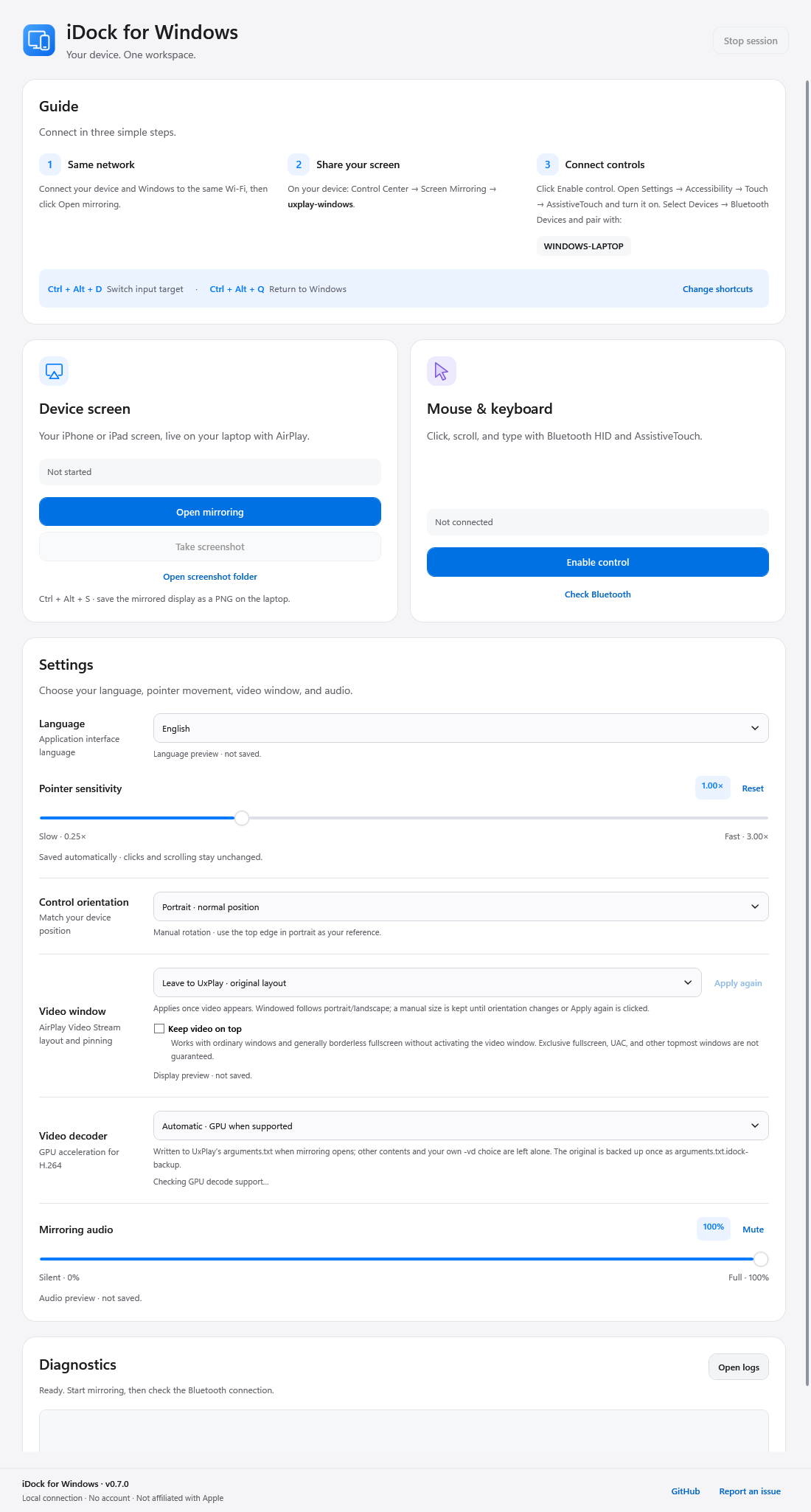
Open Screen Mirroring on iPhone and bring its display to Windows. Pin the video window to keep it in sight, then save a screenshot when you need it.
Both devices on the same local network
Your iPhone screen on your desktop. Your mouse and keyboard at hand. Bring two devices into a more comfortable workflow.
A control illustration. No device is connected.
Each connection has its own job. AirPlay brings the screen to Windows. Bluetooth sends your input to iPhone.
Open Screen Mirroring on iPhone and bring its display to Windows. Pin the video window to keep it in sight, then save a screenshot when you need it.
Click, drag, scroll, and type from your laptop over Bluetooth LE HID. Enable AssistiveTouch on iPhone and adjust sensitivity to suit your workflow.
From mirroring to Bluetooth diagnostics, iDock puts the settings you need in a single window.
Download iDock on Windows. Connect your laptop and iPhone to the same local network.
Windows + iPhoneOpen mirroring in iDock. On iPhone, open Control Center → Screen Mirroring and select the receiver.
AirPlayEnable control in iDock, turn on AssistiveTouch on iPhone, and pair the Bluetooth device.
Bluetooth LEGet to know the connections. Then get started.
No companion app is required. iDock uses AirPlay for the screen and Bluetooth with AssistiveTouch for control.
Not every adapter or Windows driver supports the required BLE peripheral/GATT mode. Use iDock’s Bluetooth diagnostics and check the installation guide.
The screen travels over AirPlay on your local network. Mouse and keyboard use Bluetooth LE HID, so each connection needs its own setup.